Allows a user to create a link to a document that is to be reviewed by another user. The document name will show in the other user’s “Doc Reviews”.
Select the document you want another user to review and click “For Review”.
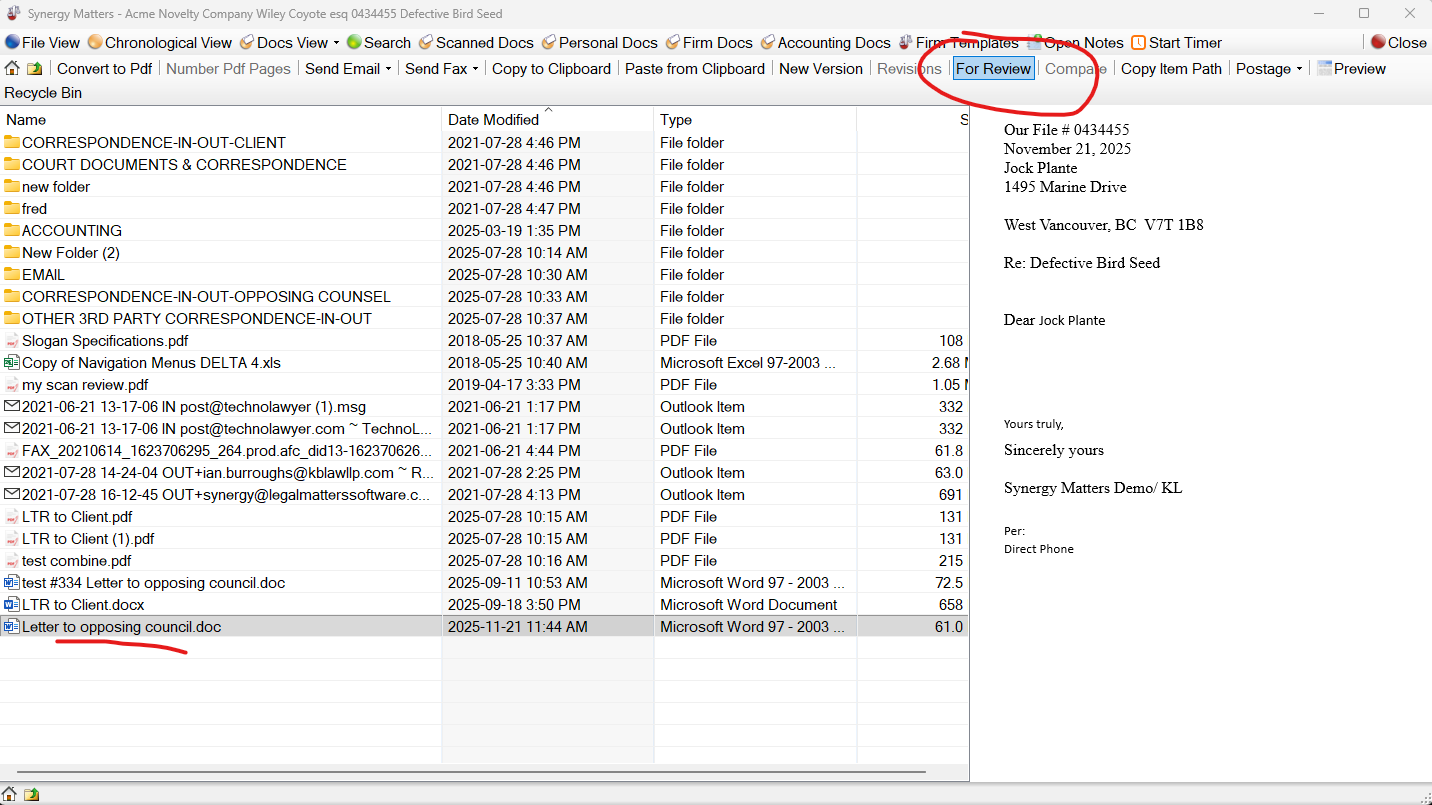
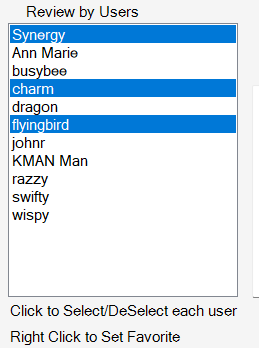
This will open a user selection window. Select the user you wish to review the document and type in the Notes what they should review of the document.
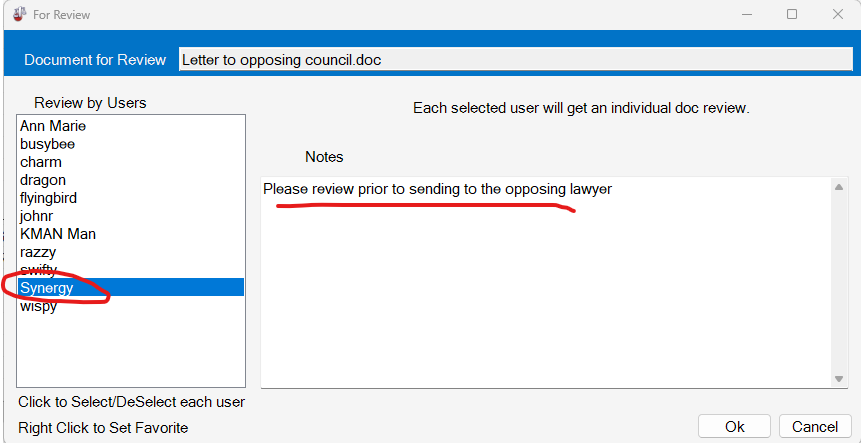
You can right click a user and select “Favorite” to move a user you will send Doc Reviews often to to the top of the list. This will make for quicker selection for sending future Doc Reviews.
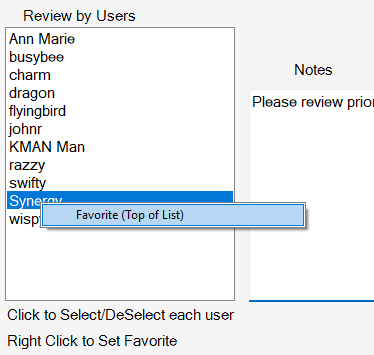
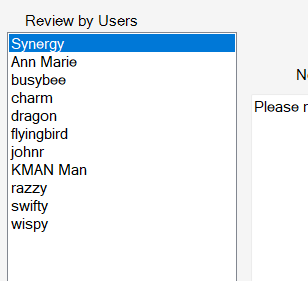
The favorite user will then show at the top of the list.
Hold ctrl key and click each user if you want to create an individual Doc Review of the same document to multiple users.
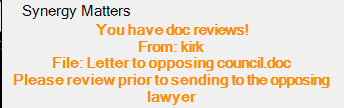
User receiving the Doc Review will see a momentary popup in their system tray (bottom left of screen), user can quickly click the popup before it dissapears and it will open the Doc Review item. In additon it will show in the receiving user’s “Doc Reviews”.
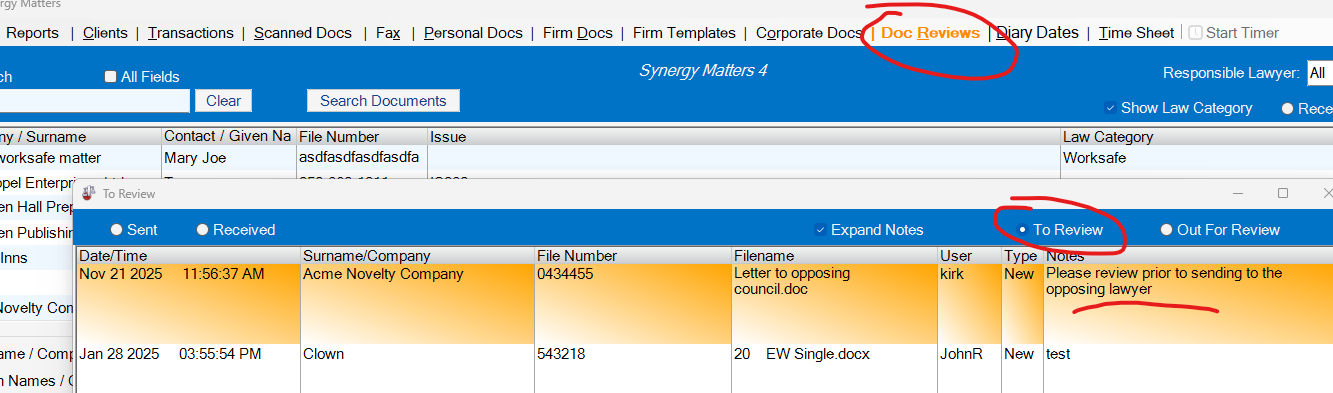
The user receiving the Doc Review will see their “Doc Reviews” button light up as orange when they have any outstanding Doc Reviews. Clicking the button will open a list of Doc Reviews “To Review”. They can read the “Notes” column to see what they are being asked to do with the document.
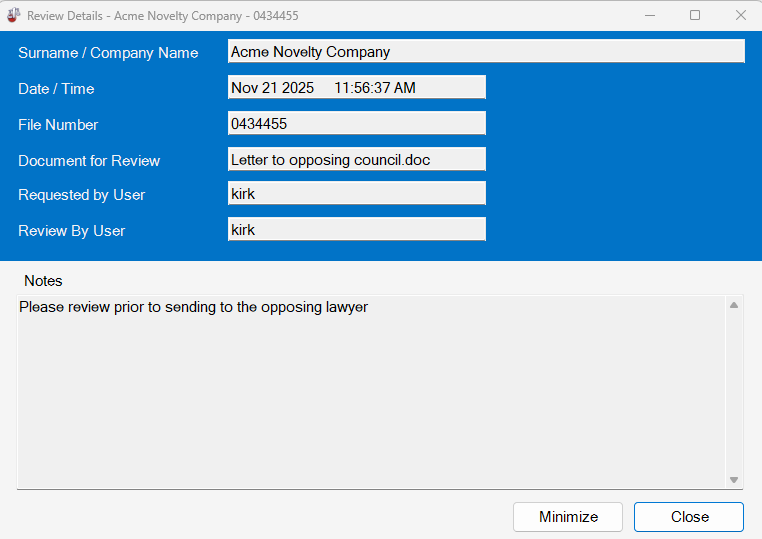
You can click “View Details” to open the specifics on the Doc Review item and see all of the Notes in an easier view than in just the column of the item.
Double click the Doc Review item or click the “Open” button at the bottom and the document that was sent for review will open. This is not a copy but the actual document and can be edited by the receiving user.
LAWYERS: Often work directly from this Doc Reviews window reviewing any items that are sent from staff to them for review.
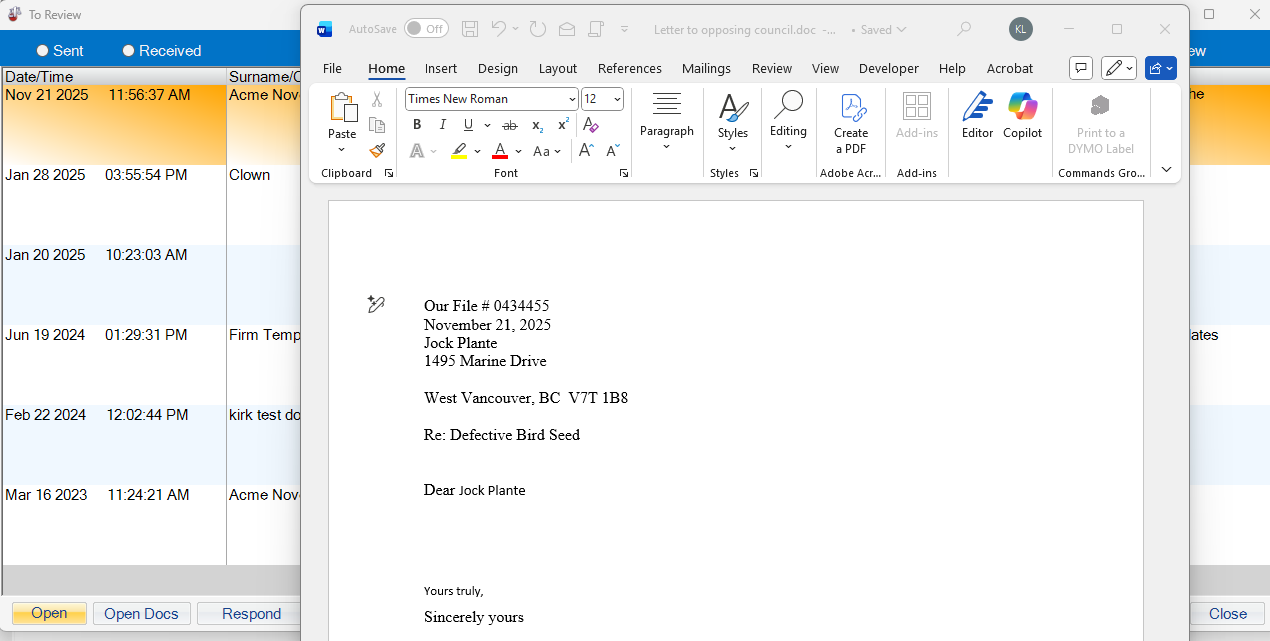
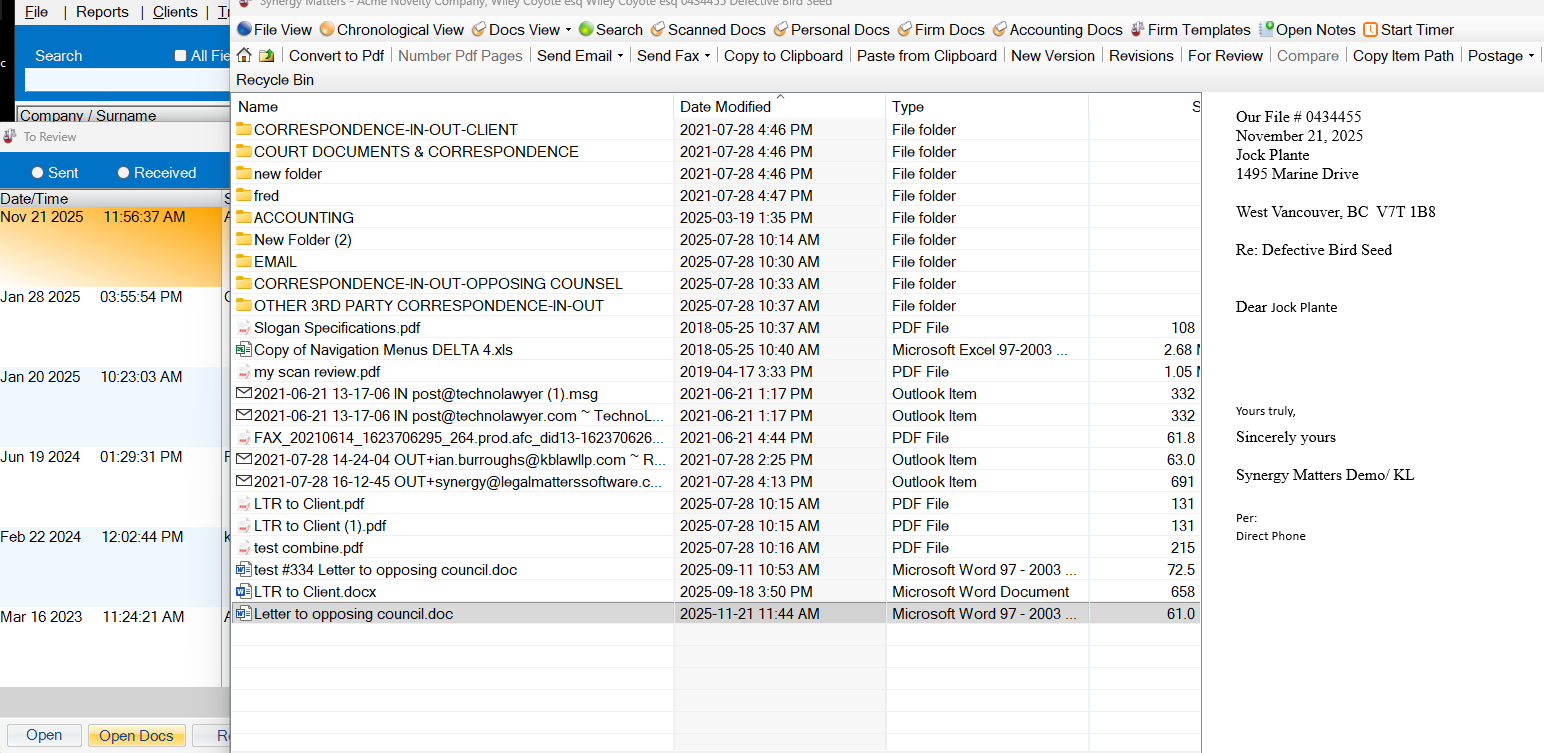
“Open Docs” button at bottom can be used instead of “Open” to take the user to the folder in the matter and highlight the document to be reviewed. This allows the lawyer to be in the working matter folder and potentially reference other documents in the same matter.
Reviewer can click “Respond” to take the Doc Review out of their list and send a text message back in the notes to respond to their request for review.
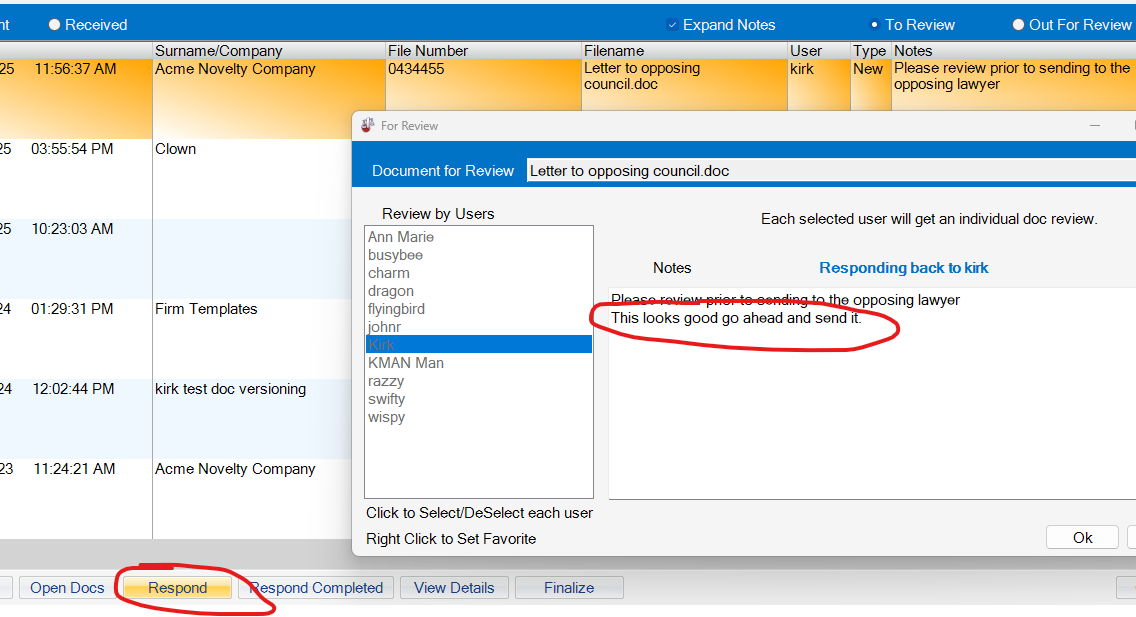
Respond will put the Doc Review back to the original sender’s “To Review” with any appended instructions.

If the Reviewer clicks “Respond Completed” when reviewing an item, that will send the Doc Review back to the original sender’s “To Review” with an automatic message appended “Marked Comleted by Reviewer”. This would be used if the Reviewer doesn’t need to ask the sender to do anything more with the item.


“Finalize” either the Sender or the Reviewer can Finalize a Doc Review. This considers the Doc Review complete and takes it out of both user’s lists and nothing more is needed to be done with the document. The document remains where it is.

The finalized Doc Review will show in the Reviewer’s “Received” archive list.

The finalized Doc Review will also show in the sender’s “Sent” archive list.
